
How to Fix Control Resonant Frame Rate Drops and Stuttering on PC


Most Control Resonant stutter will not be your GPU. It will be shader compilation, VRAM overflow from path tracing on an 8GB card, or your storage failing to feed Northlight’s asset streaming fast enough. This Fix Control Resonant Frame Rate guide covers the settings that actually cost frames, the hardware bottlenecks that cause hitching, and the checks to run before launch day.
Published September 9, 2026, ahead of the September 24 release. Remedy has not published final graphics preset targets, and no retail build exists yet. This guide covers confirmed specifications, confirmed engine features, and verifiable PC-side fixes. Game-specific patch issues will be added after launch.
What Is Actually Running Under The Hood

Control Resonant runs on Remedy’s proprietary Northlight engine, the same engine behind Alan Wake 2, significantly upgraded for this release.
That upgrade matters for performance diagnosis. Northlight has been rebuilt with GPU-driven rendering, mesh shaders, and single-pixel occlusion culling to handle the greater geometric density and path-traced lighting the sequel demands.
The structural change is the bigger deal. The original Control took place inside the Oldest House, a set of enclosed corridors and rooms. Resonant moves to a warped Manhattan built as large connected zones, with more open sightlines and heavier physics-driven destruction. Open sightlines are expensive. Destruction physics are expensive. Both stress different parts of your system than the 2019 game did.
Remedy has stated it is targeting 60 frames per second across all platforms. That is a design goal, not a guarantee on your specific rig, and full details on the game are listed on the official Remedy product page.
Confirmed PC System Requirements
Remedy published these as initial requirements and has said a more detailed breakdown, including resolution and frame rate targets plus separate ray tracing and path tracing tiers, will follow closer to launch.
| Component | Minimum | Recommended |
|---|---|---|
| OS | Windows 10 / 11 64-bit | Windows 10 / 11 64-bit |
| CPU | Intel Core i5-8500 or AMD equivalent | AMD Ryzen 7 3700X or equivalent |
| GPU | GeForce GTX 1070 / Radeon RX 5600 XT | GeForce RTX 3070 / Radeon RX 6700 XT |
| RAM | 16 GB | 16 GB |
| Storage | 100 GB SSD | 100 GB SSD |
| Upscaling | Optional | DLSS 4.5 supported |
| Path tracing | Not supported | RTX 40-series or newer |
Two lines in that table cause most of the confusion.
Remedy has not attached resolution or frame rate numbers to either tier. Any site telling you the minimum spec is “1080p 30 on low” is guessing. Wait for the official breakdown.
The SSD is mandatory, not a suggestion. Northlight streams assets continuously during combat and traversal. A mechanical hard drive cannot sustain that throughput, and the result is texture pop-in and traversal hitching that no graphics setting will fix.
Note also that both tiers list the same 16 GB of RAM. If you are running 8 GB, you are below minimum regardless of your GPU.
Core Strategy: The Four Real Causes Of Stutter
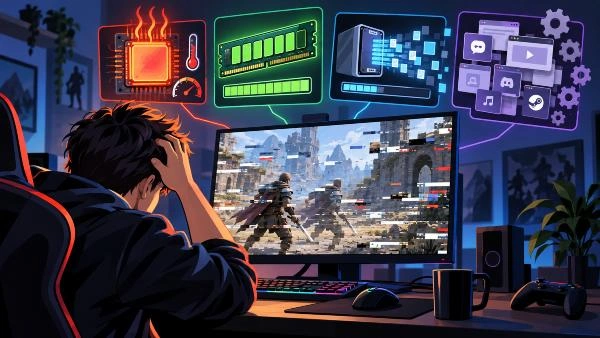
Frame rate drops and stuttering are different problems with different fixes. Diagnose which one you have before changing settings.
Cause One: Shader Compilation Stutter
This is the most likely culprit in the first hour of any modern PC release, and Northlight titles are no exception.
The symptom is a brief freeze the first time a new effect, enemy, or weapon form appears, which never recurs in that same spot. It clears itself as you play. It comes back after every GPU driver update, because the driver update invalidates the shader cache.
Do not panic-tune your settings over this. Play through it.
Cause Two: VRAM Overflow
The recommended GPUs, the RTX 3070 and RX 6700 XT, are 8 GB cards. Path tracing data sets and high-resolution textures both consume VRAM aggressively.
The symptom is smooth gameplay that degrades into sustained hitching after ten or fifteen minutes, often worsening when you enter a new zone. Frame rate looks fine on average and feels terrible.
Texture quality is the setting to drop first, not shadows or reflections. Match your texture setting to your actual VRAM, not to your GPU’s marketing tier.
Cause Three: Storage Throughput
The symptom is hitching tied specifically to movement through the world rather than to combat intensity — you stutter when crossing zone boundaries or sprinting through new areas, but a heavy fight in an already-loaded room runs fine.
This is the asset streaming bottleneck. It is a storage problem and it is not fixable through graphics settings.
Cause Four: Genuine GPU Or CPU Limit
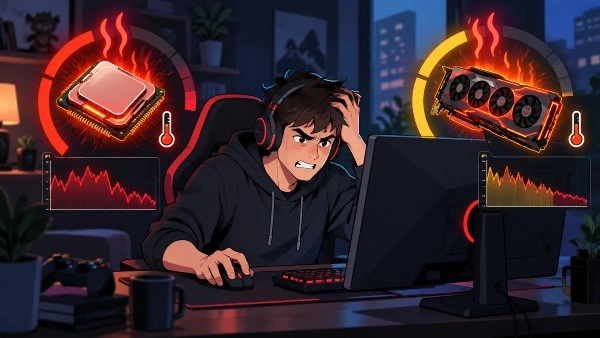
The symptom is a consistently low frame rate rather than intermittent hitching. Frame times are stable, just slow.
This is the only one of the four that graphics presets actually solve.
Step-By-Step: How To Fix Control Resonant Frame Rate Drops
- Update your GPU driver to the latest release before launch.
- Restart after the driver install. Do not skip this.
- Install the game to an SSD, never a mechanical drive.
- Leave at least 20 GB free on that drive beyond the 100 GB install.
- Set Windows power plan to High Performance or Balanced.
- Enable Hardware-Accelerated GPU Scheduling in Windows graphics settings.
- Close Chrome, Discord, and browser tabs before launching.
- Disable overlays — Steam, Discord, GeForce Experience, MSI Afterburner.
- Launch the game once and let it sit at the menu for two minutes.
- Play the first twenty minutes without changing anything.
- Watch for hitching pattern, not average FPS.
- If hitching is intermittent and clears, it is shader compilation. Continue playing.
- If hitching worsens over time, lower texture quality one step.
- If hitching is tied to movement, verify the install is on SSD.
- If frame rate is consistently low, enable DLSS 4.5 at Quality.
- Drop ray tracing or path tracing before dropping resolution.
- Verify game files if problems persist after all of the above.
- Check for a launch-day patch before deeper troubleshooting.
Settings Priority: What Actually Costs Frames
Not all graphics options cost the same. Adjust in this order.
Path tracing. By far the most expensive option in the game. Path tracing simulates light bounces across the entire scene rather than approximating them, and it requires an RTX 40-series card or newer. If you are chasing frames, this is the first toggle to touch. Turn it off entirely rather than lowering it.
Ray tracing. Standard ray tracing is less punishing than path tracing but still costs heavily, particularly reflections in a game full of glass and warped architecture. Remedy has not confirmed exact ray tracing tier requirements, so treat this as a test-and-measure setting on your own hardware.
Texture quality. Cheap on frame rate, expensive on VRAM. This is the setting that causes overflow hitching on 8 GB cards. Lowering it costs you almost nothing visually at 1080p and can eliminate sustained stutter entirely.
Resolution and upscaling. DLSS 4.5 is supported and is the single most effective performance recovery tool available on RTX hardware. Run DLSS at Quality before you drop your output resolution. Upscaled 1440p almost always looks better than native 1080p.
Shadows, volumetrics, and ambient occlusion. Moderate cost, moderate visual impact. Adjust these after the above, not before.
Remember that DLSS 4.5 and path tracing are entirely optional. Remedy has built the game to run without either on the recommended tier.
Advanced Optimization Tips
- Do Not Judge Performance In The First Hour — Shader compilation stutter is indistinguishable from a broken port if you only play for twenty minutes. It resolves as the cache builds. Give the game a full session before you start tearing settings apart, and expect it to return briefly after any GPU driver update. Players who benchmark a Northlight game on a cold shader cache reliably reach the wrong conclusion.
- Cap Your Frame Rate Rather Than Chasing A Ceiling — Remedy is targeting 60 FPS across platforms, which means the game is tuned around that figure. An uncapped frame rate that swings between 90 and 45 feels significantly worse than a locked 60, because frame time consistency matters more to perceived smoothness than raw average FPS. Set a cap slightly below your worst-case dips and the stutter often disappears without touching a single graphics setting.
- Match Texture Quality To VRAM, Not To GPU Tier — Both recommended GPUs ship with 8 GB, and path tracing data sets plus the upgraded Northlight texture budget will pressure that. The failure mode is deceptive: your average frame rate stays acceptable while your frame times fall apart. If you see stutter that gets steadily worse the longer you play, drop textures one notch before you touch anything else.
- Free Up Storage Headroom Beyond The Install — The 100 GB requirement is the install size, not the working space. A nearly full SSD throttles write speeds and degrades the continuous asset streaming Northlight depends on, which produces traversal hitching that looks exactly like a GPU problem. Keep meaningful free space on the same drive.
- Kill Overlays Before You Blame The Game — Discord, Steam, GeForce Experience, and hardware monitoring overlays all inject into the render pipeline, and stacked overlays are a routine cause of intermittent hitching in Northlight titles specifically. Disable them all, confirm the game is clean, then re-enable one at a time if you need them.
- Wait For The Detailed Spec Breakdown — Remedy has confirmed it will publish resolution and frame rate targets, plus separate ray tracing and path tracing requirements, closer to launch. Tuning your build against the initial two-tier list alone means guessing at what preset those tiers represent.
Platform Notes Worth Knowing
Remedy is self-publishing Control Resonant and has confirmed Xbox Play Anywhere support, meaning a single purchase covers Xbox console, PC, and supported handhelds with saves and achievements carrying across.
That matters for troubleshooting. If your PC is struggling and you own an Xbox Series X|S, you can move to console without rebuying, verify whether the issue is hardware-specific, and come back to PC after a patch.
The game launches on PlayStation 5, Xbox Series X|S, and PC via Steam and Epic Games Store, with GeForce NOW support at launch and a Mac version following later in 2026. Streaming through GeForce NOW is a legitimate fallback if your GPU falls below the minimum tier.
For broader context on the game’s development, engine history, and Remedy’s acquisition of the Control IP, the Wikipedia entry is a reasonable neutral reference. Background on the 2019 original, which remains one of the better ray tracing showcase titles, sits on the official Control site.
Frequently Asked Questions
Why is Control Resonant stuttering on my PC?
The three most common causes at launch are shader compilation on a cold cache, VRAM overflow from high textures or path tracing on an 8 GB card, and asset streaming bottlenecks from installing to a mechanical hard drive. Identify which pattern matches your hitching before changing settings.
What are the minimum PC requirements for Control Resonant?
An Intel Core i5-8500 or AMD equivalent, a GeForce GTX 1070 or Radeon RX 5600 XT, 16 GB of RAM, and 100 GB of SSD storage on Windows 10 or 11 64-bit. Remedy has not confirmed which resolution or frame rate that tier targets.
Does Control Resonant support DLSS?
Yes. DLSS 4.5 is confirmed on PC, alongside path tracing for RTX 40-series cards and newer. Both are optional, and Remedy has stated the game is playable on the recommended tier without either enabled.
Will lowering ray tracing fix my frame rate drops?
It fixes low frame rates but not stuttering. If your frame time is consistent and simply slow, disabling ray tracing or path tracing helps immediately. If you are hitching intermittently, the cause is shader compilation, VRAM, or storage, and ray tracing settings will not resolve it.
One thought on “How to Fix Control Resonant Frame Rate Drops and Stuttering on PC”