
Why Is There No Sound While Gaming on Mac? Causes and Fixes

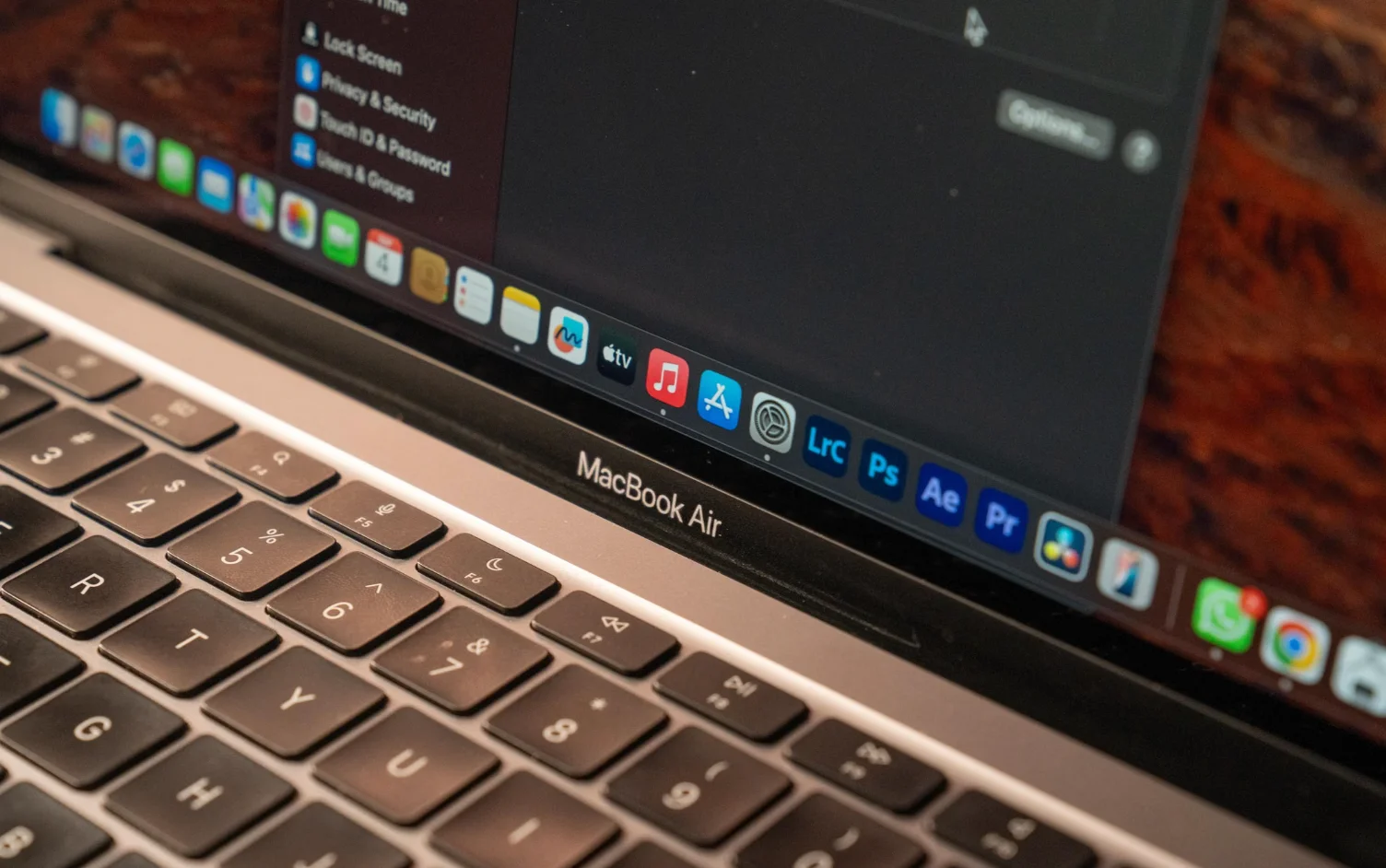
You’re halfway through a game, everything is running smoothly, and suddenly the sound disappears. The game itself hasn’t crashed. Your character is still moving, and the screen looks perfectly normal, but there’s no music, dialogue, or sound coming through your speakers.
It’s an annoying problem, especially if you’re playing something where audio matters. Missing footsteps in a competitive game or losing dialogue during a story-driven adventure can make the experience frustrating.
When this happens on a Mac, the first instinct is often to restart the game or assume something went wrong with the installation. While that might help in some cases, the actual cause could be something much simpler, such as an incorrect audio output setting or a Bluetooth device that hasn’t disconnected properly.
The important thing is to figure out where the sound is getting lost. Once you know whether the problem comes from the game, your audio equipment, or macOS itself, finding a solution becomes much easier.
Why Do Mac Games Sometimes Lose Sound?
There isn’t one specific reason why game audio stops working on a Mac. Different games use different audio systems, and the problem can happen at several points between the application and your speakers.
Sometimes the game is responsible. An update may have introduced a bug, the audio settings might have changed, or the application may have trouble communicating with the selected output device.
Other times, the game is working normally, but macOS is sending audio somewhere you aren’t expecting.
For example, imagine you’ve been gaming with Bluetooth headphones and decide to switch back to your MacBook’s speakers. If your headphones remain selected as the audio output, the game may continue sending sound to them even after you’ve put them away.
External displays can cause similar confusion. When you connect your Mac to a monitor using HDMI or USB-C, macOS may recognize the display as another available audio destination. If that display doesn’t have speakers, or its volume is turned down, your game can appear completely silent.
Software glitches, outdated game versions, and temporary problems with macOS audio services can also interrupt playback.
The challenge is knowing which of these possibilities you’re dealing with.
Find Out Whether the Problem Is With Your Game or Your Mac
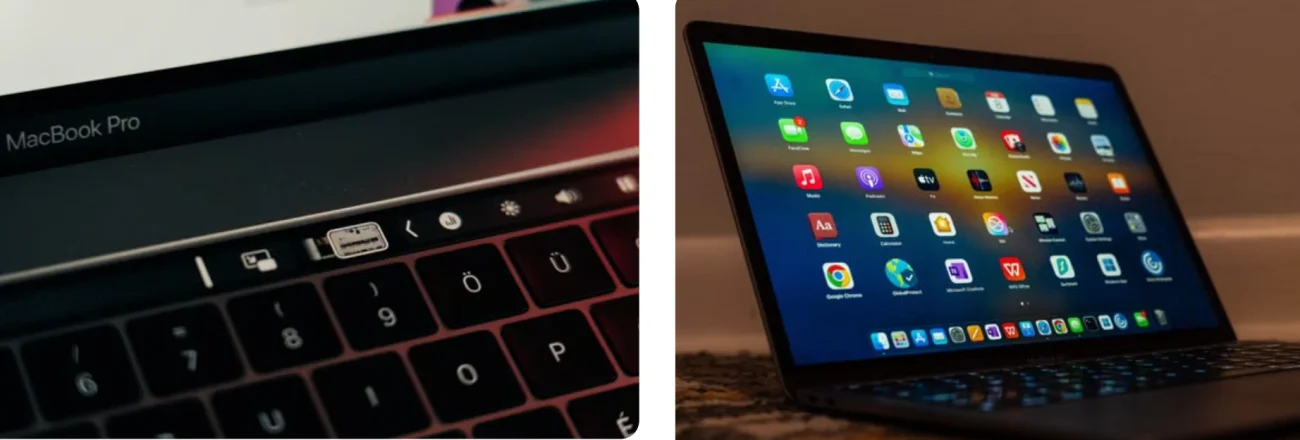
Before changing any settings, try something simple: play audio outside the game.
Open a browser and play a YouTube video, or launch the Music app and listen to a song. You don’t need to spend much time testing. A few seconds should tell you whether your Mac can produce sound normally.
If the video or music plays without a problem, that’s a useful clue. Your speakers are working, and the issue may be limited to the game or its interaction with the current audio setup.
In that situation, return to the game and check its audio settings.
Many games allow players to adjust music, dialogue, effects, and master volume separately. It’s possible to have the master volume turned up while individual sound categories remain muted.
Some games also provide a separate audio output option. If yours does, confirm that it’s using the device you actually want. If the settings look correct, close the game completely and reopen it. On a Mac, use the application’s Quit option or Command + Q rather than simply closing its window. Pay attention to when the problem started, too.
Did the sound disappear immediately after connecting a headset? Was there a recent game update? Does audio work until you switch between applications? These details can help you narrow down the cause instead of making random changes. However, if your Mac can’t play sound through other applications either, the problem probably isn’t limited to the game. That’s when you should investigate macOS audio settings.
Troubleshooting Audio Settings in macOS
Mac users sometimes overlook the system’s sound settings because volume controls are so easy to access from the keyboard.
But raising the volume won’t help if the sound is being sent to the wrong device.
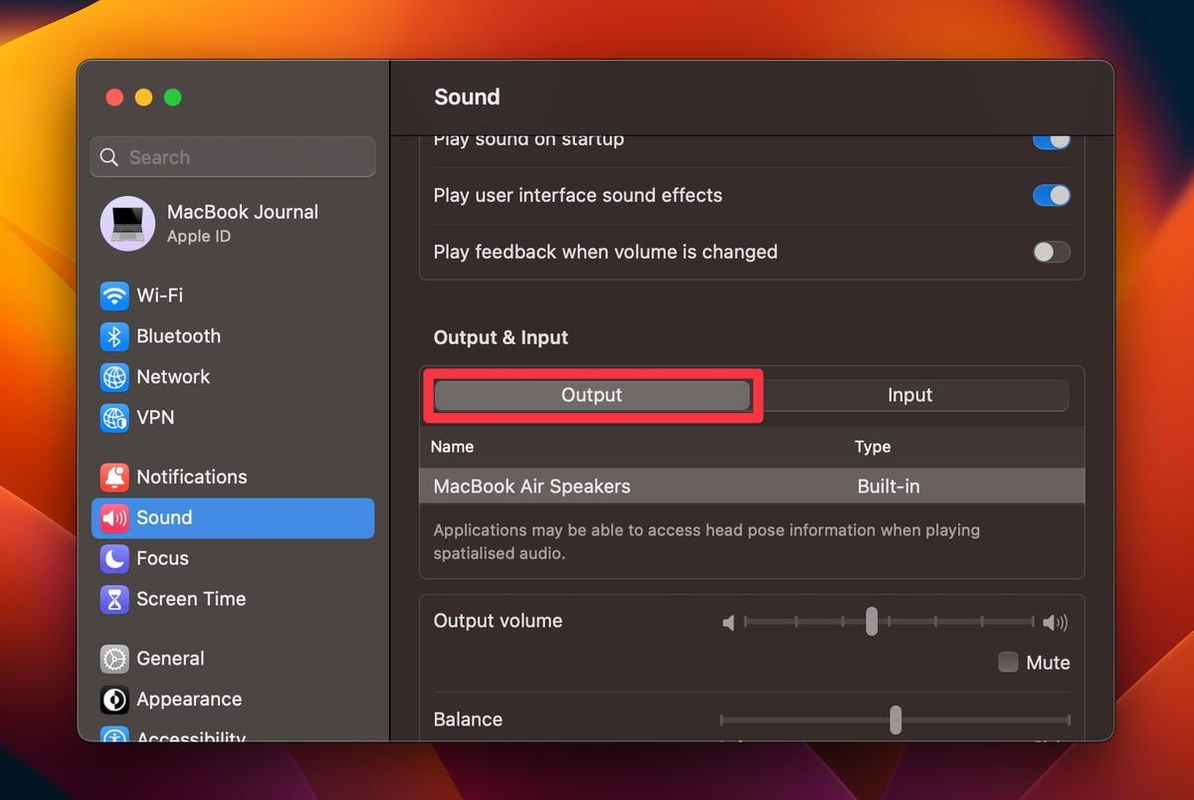
Open the Apple menu and navigate to System Settings > Sound. Under the Output section, you’ll see the audio devices currently available to your Mac.
Depending on your setup, these might include your built-in speakers, wired headphones, Bluetooth speakers, an external display, or a USB audio interface.
Select the device you want to use for gaming.
If you’re playing without headphones, choose your Mac’s built-in speakers. Then check the output volume and make sure the device isn’t muted.
Try playing something again.
This is particularly important for people who regularly switch between gaming setups. A MacBook connected to an external monitor, headphones, and a microphone may have several audio devices available at the same time.
Sometimes the selected device isn’t the one you expect.
What If Your Mac Has No Sound at All?
If you’ve checked the output device and volume but still can’t hear anything from games, videos, or other applications, the issue may be related to macOS rather than an individual game.
Temporary software glitches, external devices, or problems with the system’s audio service can prevent sound from playing correctly.
At this point, it makes sense to troubleshoot the Mac’s overall audio system rather than repeatedly changing settings inside the game.
If you’re unsure where to begin, this step-by-step guide walks through common Mac sound problems, including incorrect output settings, connected audio devices, and restarting the system’s sound controller.
You can also try restarting your Mac before attempting anything more technical.
A restart closes active applications and reloads background services, which may resolve temporary audio problems.
Once your Mac starts again, test the sound in a browser before opening your game. If normal audio playback has returned, launch the game and check whether the original issue is resolved.
This approach helps establish whether you’re dealing with a wider system problem or something specific to the game.
Resolving Headphone and Bluetooth Audio Issues
Headphones are a common part of a gaming setup, but they can also introduce audio problems that aren’t immediately obvious.
Wired headphones are usually straightforward. If the sound disappears, check whether the connector is fully inserted and whether the headset itself has a volume or mute control.
If you’re using a USB headset or audio interface, try disconnecting and reconnecting it. You can also test another available port or adapter to rule out a connection problem.
Bluetooth audio can be a little less predictable.
Your headphones might appear connected even when they aren’t actively playing sound. They may also switch between devices if you’ve paired them with your phone, tablet, and Mac.
Open System Settings > Bluetooth and confirm that your headphones are connected to the correct computer.
If they are connected but remain silent, disconnect them, wait a moment, and reconnect.
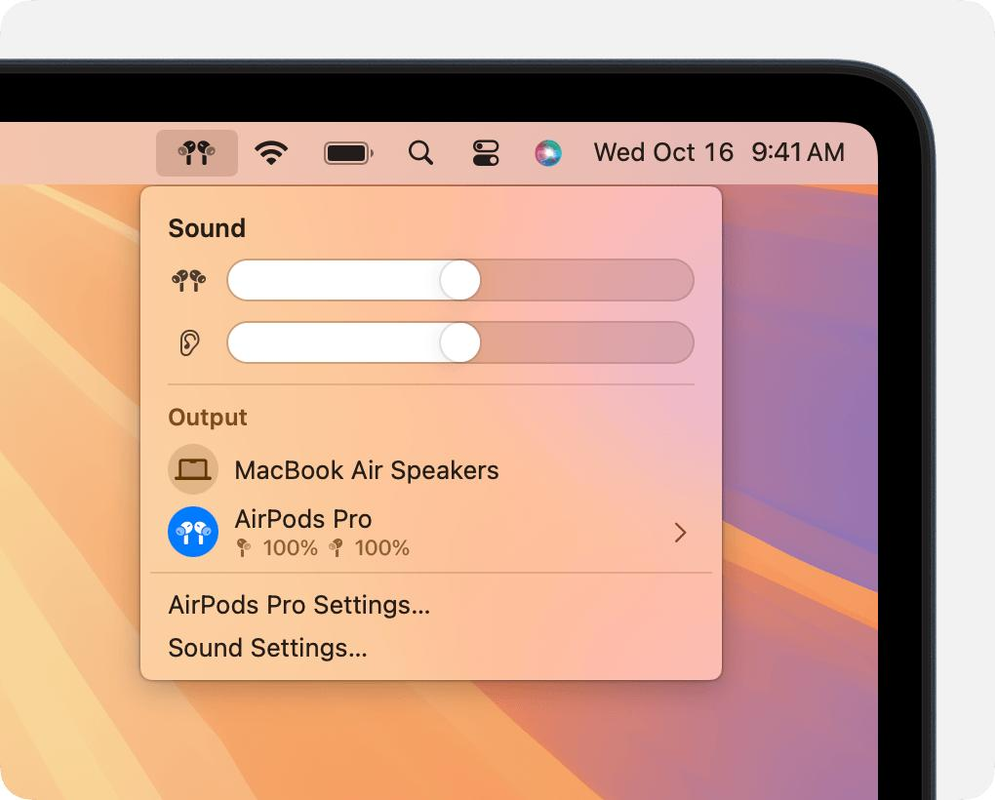
After reconnecting, return to the Sound settings and select the headphones under Output.
It’s worth checking the headset’s battery level as well. Low power or unstable wireless connections can sometimes affect playback.
For persistent Bluetooth issues, temporarily switch to your Mac’s built-in speakers.
If sound works normally through the speakers, you’ve narrowed the problem down to the headset or its connection rather than the game itself.
That distinction can save a lot of unnecessary troubleshooting.
When Game Audio Works but Your Live Stream Is Silent
For players who stream their gameplay, there is another situation worth understanding.
You might hear the game perfectly through your own headphones while viewers report that they can’t hear anything.
This doesn’t necessarily mean your Mac has an audio problem.
Streaming software often captures audio separately from the device you’re listening through. As a result, the audio output used by the game and the audio source captured for viewers may not be the same.
Start by checking the audio meters in your streaming application.
If the meters aren’t responding while the game plays sound, the streaming software may not be receiving the correct audio source.
Review the application’s audio capture settings and confirm that your selected capture method is supported on your version of macOS.
Depending on the streaming application, game audio may require specific capture permissions, a compatible audio capture feature, or additional configuration.
Avoid installing random audio utilities simply because a tutorial suggests them. Some older capture methods aren’t compatible with newer macOS versions.
The goal is to make sure the streaming application can receive the game’s sound without disrupting the audio you hear locally.
You should also distinguish missing game audio from microphone problems.
If viewers can hear the game but not your voice, the issue is likely related to microphone input or capture settings, not your Mac’s speaker output.
Treating these as separate problems makes troubleshooting far less confusing.
What to Do When the Sound Still Doesn’t Work
If the basic checks haven’t helped, consider whether the problem began after a software update or a change to your gaming setup.
For example, a game that worked normally yesterday but stopped producing sound after an update may be experiencing an application-specific issue.
Check the game’s official support page, patch notes, or community discussions to see whether other players have reported similar behavior.
It’s also worth checking macOS updates.
Apple periodically releases updates that address bugs, compatibility problems, and system stability. You can look for available updates under System Settings > General > Software Update.
Before installing a major macOS upgrade, however, confirm that the games and gaming utilities you rely on support that version.
Compatibility is especially important for older Mac games, emulators, and third-party audio tools.
Another thing to consider is whether the sound problem occurs only after your Mac wakes from sleep.
Some external audio devices may need to reconnect or be selected again after the computer wakes up.
If that seems to be the pattern, test the game without external equipment and see whether the issue returns.
For more persistent system-wide audio failures, advanced troubleshooting may involve restarting macOS audio services. These changes should be approached carefully, particularly if you’re unfamiliar with Activity Monitor or system processes.
If your Mac’s internal speakers remain silent across every application after you’ve disconnected external devices and checked the sound settings, contacting Apple Support may be the better next step.
There’s little benefit in repeatedly reinstalling games when the underlying problem could involve the computer’s audio hardware.
Preventing Audio Problems During Future Gaming Sessions
Once you’ve restored the sound, it’s worth making your setup a little more predictable.
If you regularly move between built-in speakers, Bluetooth headphones, and external monitors, check your selected output device before starting a long gaming session.
The same applies to streaming.
A short recording or private test stream can help confirm that game audio and microphone input are being captured properly before you go live.
Keeping your games and supported macOS software updated can also reduce compatibility-related problems.
You don’t need to change every setting on your Mac or install additional utilities to maintain working audio. In many cases, the simplest setup is easier to troubleshoot.
Try to remember which settings resolved the problem if it happens again.
If switching the output device fixes missing audio after connecting a monitor, that’s the first thing to check the next time. If a particular game occasionally loses sound after waking from sleep, restarting that application may be enough.
Understanding the pattern is often more useful than memorizing dozens of possible fixes.
Frequently Asked Questions
Why does my Mac have sound everywhere except in games?
If videos, music, and other applications play normally, the problem may be related to the game itself. Check its audio settings, restart the application, and see whether a recent update introduced a known issue.
Why is there no game sound through my Bluetooth headphones?
Your Mac may be using a different audio output, or the headphones may not be connected correctly. Check Bluetooth connectivity and select the headset under System Settings > Sound > Output.
Can an external monitor cause Mac game audio to disappear?
Yes. macOS may select an external display as the audio output when it’s connected. If the display has no speakers or its volume is muted, you might not hear the game. Select the appropriate speakers or headphones in Sound settings.
Why can I hear my game but viewers can’t hear it on my stream?
Your streaming application may not be capturing the game’s audio source. Check the application’s audio meters, capture settings, and macOS compatibility. This is different from a system-wide sound problem.
Should I reinstall my game if there’s no sound?
Not immediately. First check the game’s audio settings, macOS output selection, and connected devices. Reinstalling may help with certain application problems, but it won’t fix an incorrect system audio output.
Final Thoughts
Losing sound during a game can be frustrating, but the cause isn’t always complicated.
Sometimes the game is muted. Sometimes your Mac is sending audio to headphones you’ve already disconnected. And sometimes a temporary macOS issue is preventing sound from playing across multiple applications.
Rather than changing everything at once, start by identifying whether the problem affects only your game or the entire Mac.
That one distinction can point you toward the right solution and help you get back to gaming without spending hours troubleshooting something simple.