
50+ Top Paid and Free Video Editing Tools for All Users

Choosing from this many video editing tools can feel like walking into a hardware store when all you wanted was a screwdriver. Everything looks useful, nothing explains itself, and the loudest label usually wins. Whether you’re a student cutting a class project, a small business owner making ads, a YouTuber ready to level up, or an editor looking for a better timeline, this guide is written for you.
Below, you’ll find more than 40 video editing tools organized into clear tables: professional editors, AI-powered web editors, free open-source software, mid-level desktop programs, and mobile apps. This section covers what the tables can’t: how to choose well, how to stay safe, and what to watch for before you install or pay for anything.
Professional & Advanced Video Editors
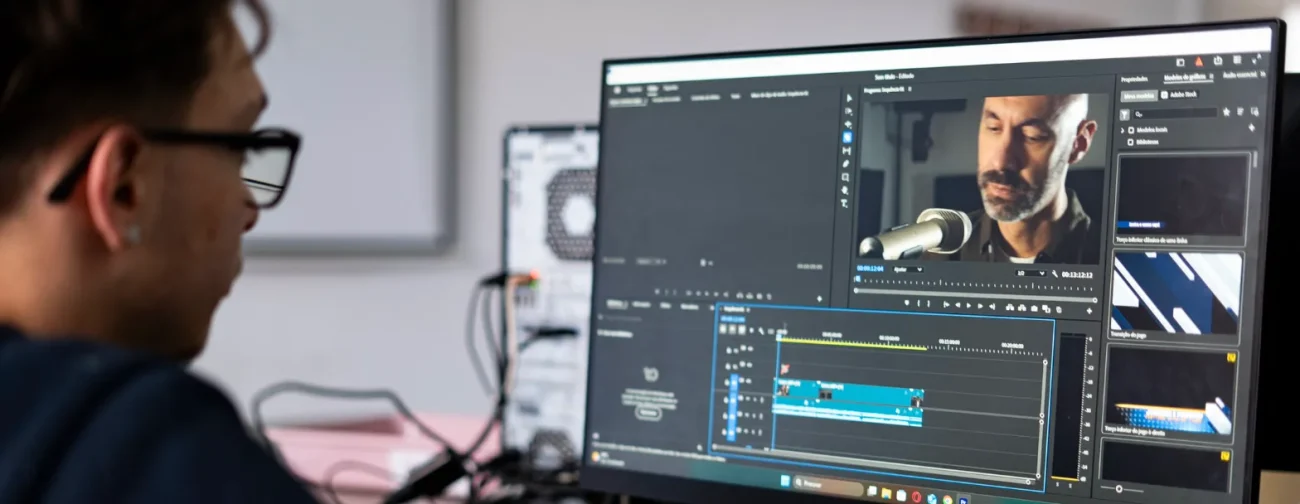
These programs are the industry standard for filmmakers, high-end content creators, and broadcast production. They give you full control over timeline tracks, precision audio work, and cinematic color grading.
| Tool Name | About Description | Price Structure | Website Link |
|---|---|---|---|
| DaVinci Resolve | A complete editing, color, effects, and audio suite known for Hollywood-grade color correction and multi-user collaboration. | Free / $295 one-time Studio | blackmagicdesign com |
| Adobe Premiere Pro | The industry-standard timeline editor, with deep integration into After Effects and the wider Adobe ecosystem. | $22.99 – $34.49/mo subscription | adobe com |
| Final Cut Pro | Apple’s fast, efficient editor, built around its Magnetic Timeline and optimized for Mac. | $299.99 one-time, or via the Apple Creator Studio bundle | apple com |
| Avid Media Composer | A dependable, database-driven editor trusted on major feature films and TV, built for large team projects. | From $23.99/mo subscription | avid com |
| Lightworks | A precision trimming editor with a long film history, used on classic Hollywood movies. | Free (720p limit) / From $9.99/mo Pro | lwks com |
| HitFilm | An editor with built-in 3D compositing and visual effects, popular with VFX-minded creators. | Free / From $7.99/mo | hitfilm com |
| Sony Catalyst Production Suite | A preparation and correction suite built around camera sensor metadata. | From $199/yr | sonycreativesoftware com |
| ✚ VEGAS Pro | A Windows editor with a straightforward timeline, known for strong audio tools and fast editing. | Paid plans and one-time options | vegascreativesoftware com |
| ✚ Adobe After Effects | The standard tool for motion graphics, titles, and visual effects, usually used alongside a main editor. | Adobe subscription | adobe com |
Everyday Creator & AI-Powered Web Editors
Ideal for quick turnarounds, social media, marketing ads, and automated workflows that don’t strain your computer.
| Tool Name | About Description | Price Structure | Website Link |
|---|---|---|---|
| CapCut | A multi-track editor on mobile, desktop, and web, with a rich library of templates, captions, and effects. | Free / $7.99 – $9.99/mo Pro | capcut com |
| VEED.io | A browser-based editor with automatic subtitles and live translation. | Free (watermarked) / From $12/mo | veed io |
| InVideo AI | Turns a text prompt or script into a finished video, complete with AI voiceovers. | Free plan / From $20/mo | invideo io |
| Riverside | A recording studio for podcasts and interviews, with local recording and automatic clip creation. | Free basic / From $15/mo Creator | riverside com |
| Adobe Express Video | A web editor with templates, clean assets, and brand kits, suited to quick branded content. | Free / Premium at $9.99/mo | adobe com |
| Canva Video Editor | A design-first editor that brings Canva’s layouts, animations, and graphics into video. | Free basic / Pro at $13/mo | canva com |
| Clipchamp | A simple editor built into Windows, with a browser version for quick projects. | Free / Premium at $11.99/mo | clipchamp com |
| FlexClip | A clean browser editor with ready-made slide transitions and text styles. | Free basic / From $9.99/mo | flexclip com |
| Kapwing | A collaborative online workspace for fast edits, captions, resizing, and memes. | Free / Pro from $16/mo | kapwing com |
| Wave.video | A web tool that combines video creation with hosting and social ad templates. | Free / Business from $16/mo | wave video |
| Lumen5 | Converts blog posts and articles into social-ready slide videos. | Free / Professional from $19/mo | lumen5 com |
| WeVideo | A shared, cloud-based editor that is especially popular in schools and training. | Personal from $4.99/mo | wevideo com |
| Magisto | An automated editor that builds videos from your clips and photos (verify availability, see note below). | Standard from $4.99/mo | magisto com |
| Creatify AI | Turns a product link into ready-to-run video ads. | Free trial / Premium from $39/mo | creatify ai |
| Tavus | Generates AI video personas for personalized outreach at scale. | API and enterprise pricing | tavus io |
| ✚ Descript | Edit video by editing its transcript, ideal for interviews, podcasts, and talking-head content. | Free / Paid plans | descript com |
| ✚ Runway | An AI-driven creative suite for generative video and effects. | Free credits / Paid plans | runwayml com |
| ✚ Opus Clip | Cuts long videos into short, shareable clips automatically. | Free / Paid plans | opus pro |
| ✚ Google Vids | A lightweight video creator inside Google Workspace, handy for presentations and team updates. | Included with some Workspace plans | workspace google com |
| ✚ Pictory | Turns scripts and long recordings into short branded videos. | Free trial / Paid plans | pictory ai |
Open-Source & Free Desktop Software Tools
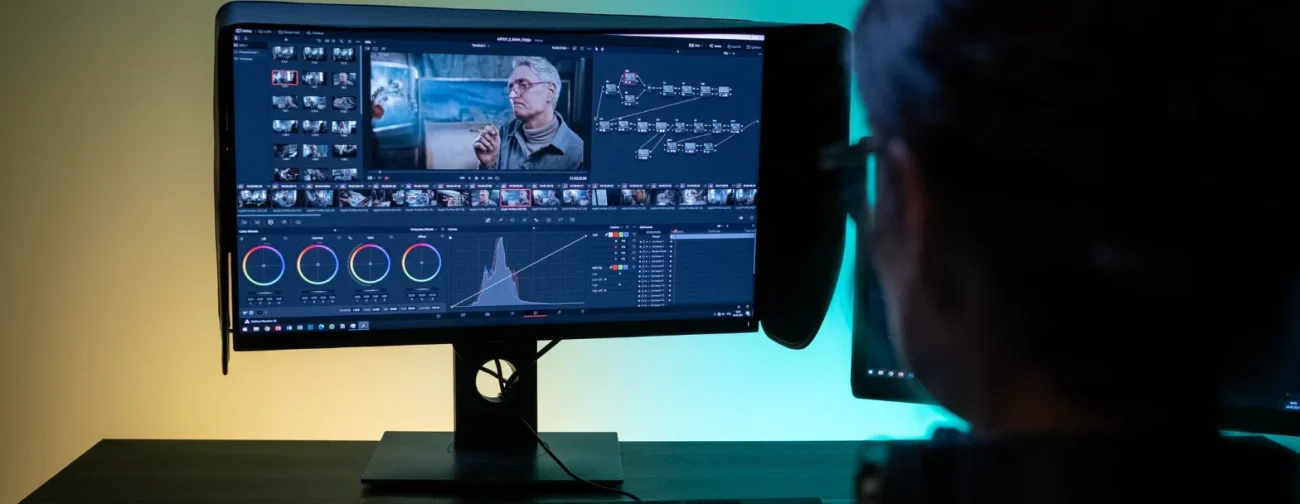
Free alternatives with no subscription fees and, for the fully open-source ones, no watermarks or processing limits.
| Tool Name | About Description | Price Structure | Website Link |
|---|---|---|---|
| Blender VSE | A 3D suite with a built-in multi-track video sequence editor, available on any major OS. | 100% Free (Open-Source) | blender org |
| Shotcut | A cross-platform editor that handles a very wide range of formats. | 100% Free (Open-Source) | shotcut org |
| OpenShot | A beginner-friendly editor with an intuitive interface and customizable vector titles. | 100% Free (Open-Source) | openshot org |
| Kdenlive | A modular, feature-rich multi-track editor built on the KDE framework. | 100% Free (Open-Source) | kdenlive org |
| VSDC Free Editor | A feature-rich non-linear editor that runs well on entry-level computers. | Free / Pro upgrade at $29.99 | videosoftdev com |
| Avidemux | A lightweight tool for simple cutting, filtering, and re-encoding. | 100% Free (Open-Source) | avidemux sourceforge net |
| ✚ HandBrake | A video converter for shrinking and re-encoding files into common formats. | 100% Free (Open-Source) | handbrake fr |
| ✚ Flowblade | A lightweight Linux editor that stays fast on modest hardware. | 100% Free (Open-Source) | jliljebl github io |
| ✚ Olive | An experimental open-source editor still in development, interesting to follow but not yet for critical work. | 100% Free (Open-Source) | olivevideoeditor org |
Intermediate Enthusiast Software
These desktop options sit between basic trimming apps and high-end professional programs, offering advanced features through simpler interfaces.
| Tool Name | About Description | Price Structure | Website Link |
|---|---|---|---|
| Wondershare Filmora | A friendly desktop editor with fun titles, transitions, and automated effects. | Subscriptions from $49.99/yr | filmora wondershare com |
| CyberLink PowerDirector | A fast-rendering editor with guided layout aids and plenty of effects. | Subscriptions from $4.33/mo | cyberlink com |
| Camtasia | Combines clean screen recording with a full editor, built for tutorials and training. | $179.99 perpetual | techsmith com |
| Pinnacle Studio | Advanced track management, including custom color masking. | Ultimate lifetime copy at $129.99 | pinnaclesys com |
| Corel VideoStudio | A streamlined workspace with built-in support for stop-motion animation. | Pro lifetime copy at $79.99 | videostudiopro com |
| Movavi Video Editor | A straightforward editor that avoids technical jargon, great for fast, simple projects. | Annual from $54.95 | movavi com |
| MAGIX Video Easy | A simple layout designed to help complete beginners get started. | Perpetual copy at $49.99 | magix com |
Mobile & Specialized Ecosystem Editors
Designed for quick editing on smartphones, tablets, or specific hardware setups.
| Tool Name | About Description | Price Structure | Website Link |
|---|---|---|---|
| iMovie | Free, seamless editing across all Apple devices, great for family videos and simple projects. | 100% Free for Apple devices | apple com |
| KineMaster | A multi-layer mobile editor with a full timeline. | Free basic / From $4.99/mo Pro | kinemaster com |
| LumaFusion | A professional multi-track timeline built for iPad and touchscreen tablets. | $29.99 one-time | luma-touch com |
| GoPro Quik | Automatic sequence syncing, made for action-cam footage. | Free basic / $9.99/yr Cloud | gopro com |
| InShot | A fast mobile editor specialized for vertical, social-ready video. | Free basic / From $3.99/mo | inshot com |
| Splice Mobile | Intuitive timeline controls and speed ramps, designed for music-driven clips. | From $2.99/week | spliceapp com |
| Alight Motion | A mobile graphics and motion editor that handles vector and animation work on a phone. | Free / From $4.99/mo | alightmotion com |
| ActionDirector | Focused on high-framerate action footage, with speed adjustments and corrections. | Free basic / Premium options | cyberlink com |
| ✚ VN Video Editor | A capable free mobile editor with a multi-track timeline. | Free | vlognow me |
| ✚ YouTube Create | A free mobile editor made for Shorts and short YouTube videos. | Free | youtube com |
| ✚ Videoleap | A stylish mobile editor with strong effects and creative tools. | Free / Paid subscription | videoleap com |
How to use this list of video editing tools
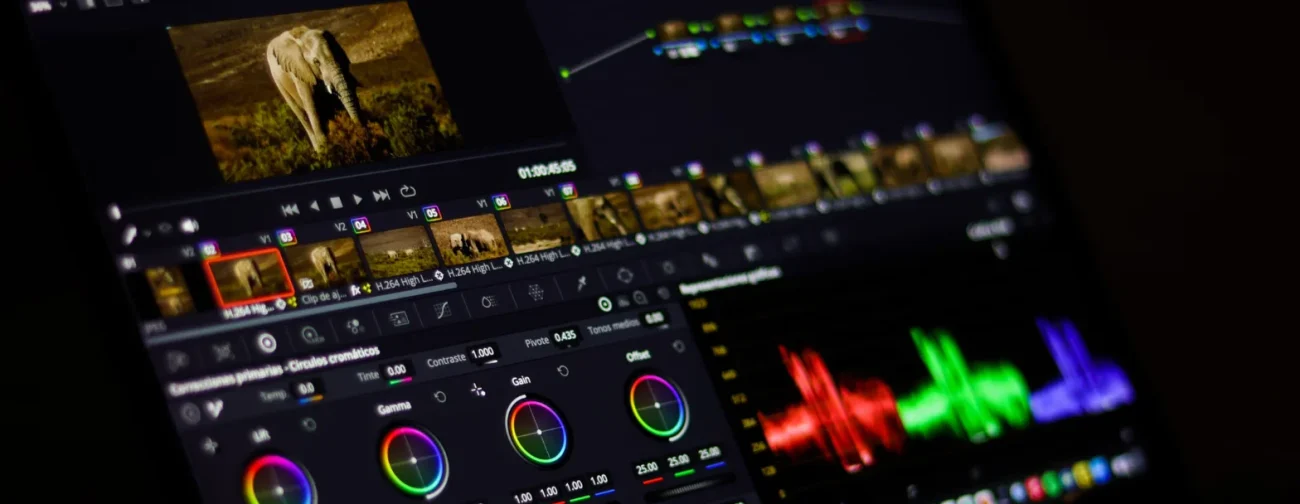
Don’t read the tables top to bottom and pick the first name you recognize. Instead, work through these steps:
- Start with your output. A vertical 30-second clip, a 20-minute tutorial, and a short film need very different video editing tools. Decide what you’re making first.
- Match the tool to your device. Check whether it runs on Windows, Mac, Linux, iPhone, Android, or in a browser. Final Cut Pro, for example, is Apple-only, while Premiere Pro, DaVinci Resolve, and Kdenlive run on more platforms.
- Check what “free” includes. Free can mean fully free, free with a watermark, or free with an export limit. Read the plan details before you spend hours on a project.
- Test with a real project. Pick two or three video editing tools, make the same short video in each, and keep the one that feels least frustrating.
What “free” really means in video editing software
The word “free” covers several very different situations, and knowing which one you’re dealing with saves a lot of disappointment.
- Truly free and open-source. Tools like Shotcut, Kdenlive, OpenShot, and Blender’s editor cost nothing, and their source code is public. They tend to have no watermarks or hidden limits, though the interface can be rougher.
- Free tier of a paid product. DaVinci Resolve’s free version is a full editor, but advanced features sit in the paid Studio version. These free tiers are often generous, but they have limits.
- Free with a watermark. Many web and mobile editors let you edit for free but stamp their logo on the export. That’s fine for practice and unacceptable for client work.
- Free trial. These are temporary. If a card is required, set a reminder before the trial ends.
- Free with ads or in-app purchases. Common on mobile. Check what the paid upgrade actually unlocks.
The key habit is to read the export settings and limits before you start editing, not after you’ve finished.
Safe and secure use of video editing tools
Safety is the part most listicles skip, and it’s the part that can cost you the most. Video editing tools are popular downloads, which makes them a favorite disguise for scams. A few habits protect you very well.
Download only from official sources
Fake installers often appear in ads or search results above the real site. Before downloading, check the web address carefully, and prefer the developer’s official site, the Apple App Store, Google Play, or the Microsoft Store. Avoid “download mirror” pages that wrap the installer in extra offers.
Avoid cracked and pirated software
A “free” copy of an expensive editor is rarely free. Cracked software is a well-known route for malware, and it can take your passwords, files, or computer resources. The U.S. Federal Trade Commission explains how to recognize, remove, and avoid malware. If a paid tool is out of budget, one of the free or open-source options in the tables is a far safer answer.
Keep your system updated
Editors, graphics drivers, and your operating system all receive security fixes. The Cybersecurity and Infrastructure Security Agency’s Secure Our World guidance covers practical basics like software updates, strong passwords, and multi-factor authentication. Turning on automatic updates is the easiest win.
Protect your accounts
Many video editing tools now require an account, and a stolen login can expose your projects, billing details, and cloud storage. Use a unique password for each service and turn on two-factor authentication where it’s offered.
Be careful with permissions on mobile
A video editor reasonably needs access to your camera, microphone, and photos. It shouldn’t need your contacts, precise location, or messages. If an app asks for more than it needs, deny the permission or choose a different app.
Watch for subscription traps
Some tools renew automatically after a trial, change plans, or are hard to cancel. Before entering payment details, note the renewal date, the cancellation steps, and the refund policy. The FTC’s guidance on free trial offers is a useful read if you’re unsure what to look for.
Privacy: what happens to your footage
Where your video lives matters, especially if it contains clients, children, workplaces, or anything confidential.
- Desktop editors generally keep your files on your own computer, which gives you the most control.
- Browser-based and cloud editors upload your footage to company servers. That’s convenient for collaboration but means you should read the privacy policy and terms of service.
- AI-powered tools may process your video, audio, and voice on remote servers. Check whether your content could be stored, reviewed, or used to train models, and look for an opt-out.
- Face and voice features deserve extra care. Don’t upload someone else’s face or voice into AI tools without their permission.
When in doubt, keep sensitive projects in an offline desktop editor, and use web tools for non-sensitive social content.
AI features: helpful, but verify
Many of the tools in the AI-powered table can generate scripts, voiceovers, subtitles, and even full videos. They save a lot of time, but a few cautions apply:
- Review everything. Auto-generated captions can misspell names, and automatic clip selection can miss context or tone.
- Be honest with your audience. If you use synthetic voices or generated visuals in a way viewers might mistake for real, consider saying so, and follow each platform’s disclosure rules.
- Check the commercial terms. Some free plans restrict commercial use of generated content.
- Never use AI to impersonate real people without their clear consent.
Music, images, and copyright
Great software won’t protect you from a copyright claim. Using a popular song, a movie clip, or an image you found online can lead to muted audio, blocked videos, or takedowns. Here’s what helps:
- Use music and footage from sources that clearly license it for your use.
- Learn the basics of Creative Commons licenses, since each license has different rules about attribution and commercial use.
- Don’t assume “fair use” will rescue you. The U.S. Copyright Office’s fair use overview explains that it depends on the specific facts, not on a simple rule.
- Keep a record of where each asset came from.
System requirements and performance
A great editor on the wrong computer is a frustrating editor. Before installing, check the minimum requirements for memory, graphics, and storage.
- High-resolution footage (4K and above) needs a strong processor, a capable graphics card, and plenty of fast storage.
- Older computers often do better with lighter video editing tools, browser editors, or by editing “proxy” (lower-resolution) copies of your footage.
- Storage fills up fast. Raw video files are large, so keep spare space for projects and exports.
- Don’t edit from a nearly full drive. It slows everything down and raises the risk of errors.
Protect your work with good habits
Even the best video editing tools crash sometimes. A few habits can save you from losing hours of work:
- Save often and turn on auto-save if your editor offers it.
- Follow the 3-2-1 backup idea: three copies, on two different types of storage, with one stored somewhere else.
- Keep your original footage untouched. Edit copies and keep the originals safe.
- Name files clearly and keep a tidy folder structure for each project.
- Export a test clip first before committing to a long render.
Export settings: get the final video right
A beautiful edit can look poor if it’s exported badly. Each platform has preferred formats, and YouTube publishes its recommended upload encoding settings, which are worth checking. In general:
- Match your export resolution and frame rate to your original footage.
- Choose a format that your target platform supports.
- Keep an eye on audio levels, since quiet or distorted sound loses viewers fastest.
- Always watch the exported file from start to finish before you publish.
Which video editing tools suit which person?
Use the tables above as a map, then use these quick pairings as a compass:
- Complete beginners: simple, friendly editors with templates, such as CapCut, iMovie, or Clipchamp.
- Students and learners: free options like DaVinci Resolve (free), Shotcut, or Kdenlive, so you can learn without spending money.
- Social media creators: mobile-first and template-driven apps for fast vertical content.
- Podcasters and interviewers: transcript-based or recording-focused tools.
- Educators and teams: collaborative cloud editors.
- Professionals and filmmakers: the advanced editors in the first table, where color grading, audio, and team workflows matter most.
- Tight budgets: open-source tools, which cost nothing and have no hidden limits.
Frequently asked questions
Are free video editing tools safe?
Yes, when you download them from the official source. The risk usually comes from fake download sites and cracked copies, not from legitimate free software.
Which is the best video editing tool overall?
There isn’t one. The best choice depends on your device, budget, and the kind of videos you make.
Do free editors add watermarks?
Some do, especially browser and mobile tools. Open-source editors generally don’t. Always check the plan details before you start.
Can I edit professionally with free software?
Often, yes. Some free editors are used on paid work, though advanced features like certain effects or high-resolution exports may require an upgrade.
Is it better to buy once or subscribe?
One-time purchases cost more upfront but can be cheaper over time. Subscriptions spread the cost and usually include updates. Compare the total cost over a year or two before deciding.
Do I need a powerful computer?
For simple edits, no. For high-resolution or effects-heavy work, yes. Lighter tools and browser editors can help if your computer is modest.
Summary
The best of these 40+ video editing tools is the one you’ll actually open and finish projects in. Start small, stay safe, and don’t be afraid to switch if something isn’t working. Download only from official sources, protect your accounts, respect copyright, and keep backups. Those habits matter more than any single feature.
Use the tables above to shortlist two or three tools, test them on a short project, and choose with confidence. Your video editing tools should make your ideas easier to share, not harder to finish.